How to set Adobe Digital Editions to open ebooks automatically
Sometimes a "file association" error occurs on your computer, which prevents Adobe Digital Editions (ADE) from opening downloaded ebooks. If you're having trouble opening ebooks in ADE, try the steps below to make sure that your computer opens ACSM files (which are used to download ebooks) in Adobe Digital Editions.
 Windows
- Find the ACSM file for the ebook you're trying to download (by default, it will go in your Downloads folder).
- Right-click on the ACSM file and choose Open with....
- Click Choose another app.
- Select Adobe Digital Editions, then click Always. If it's not listed, go to "If Adobe Digital Editions isn't listed" below.
If Adobe Digital Editions isn't listed
- Scroll to the bottom of the list and click Choose an app on your PC.
- In the explorer window, go to C:\Program Files (x86)\Adobe\Adobe Digital Editions.
- Double-click Digital Editions or DigitalEditions.exe.
Mac
- Find the ACSM file for the ebook you're trying to download (by default, it will go in your computer's Downloads folder), and control-click on it.
- Click Get Info.
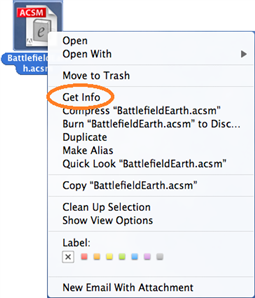
- Expand the Opens with section.
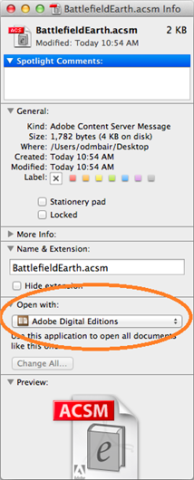
- Click the drop-down menu and select Adobe Digital Editions.
- Click Change All . . ., then Continue. Close out of the info window.
- Try downloading the title again.
If you continue to have problems with ADE, see this article for more troubleshooting options.


